
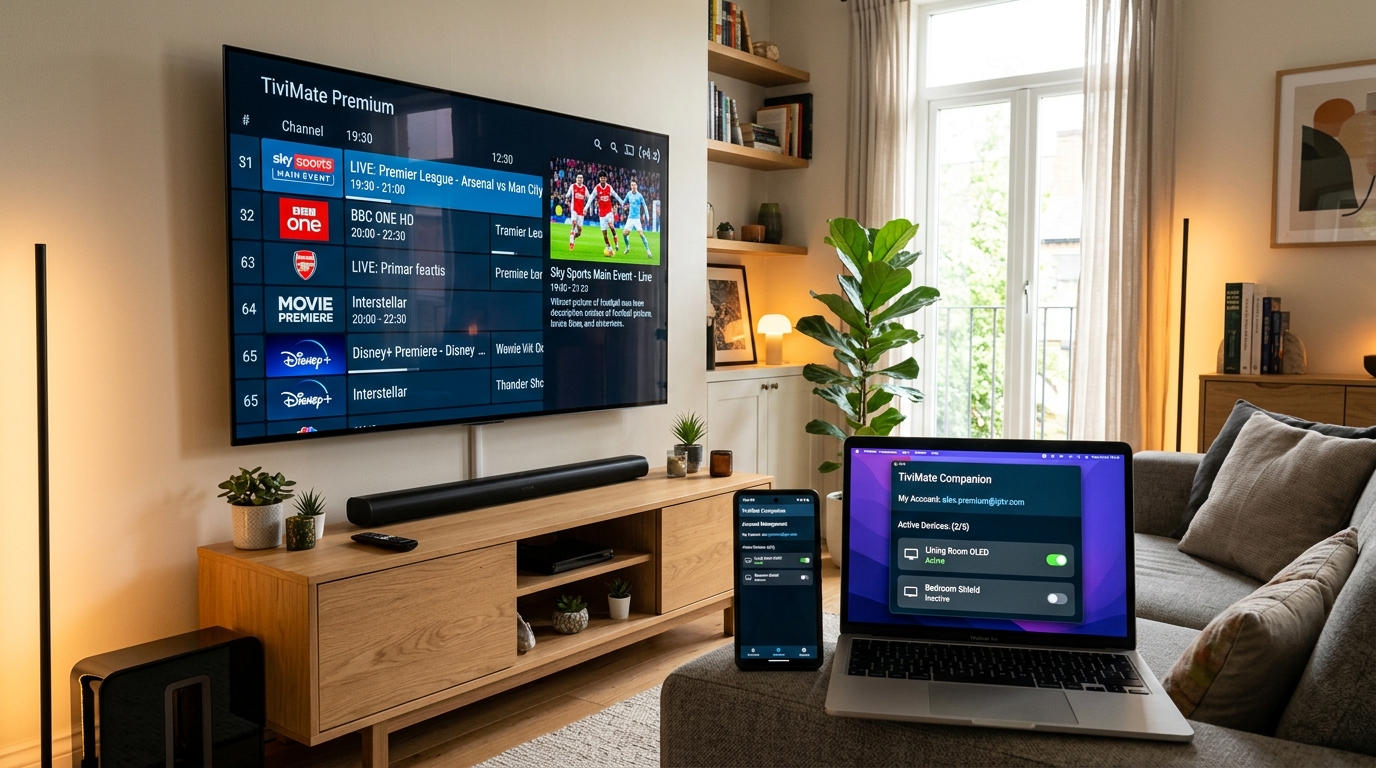
Quick Summary (At a Glance)
- • Why You Need It: Amazon Fire TV devices lack Google Play Store services. You cannot purchase TiviMate Premium on a Firestick directly without the TiviMate Companion app.
- • Official Pricing: $9.99/year (with 5-day trial) or $34.99 one-time lifetime license. Covers 5 simultaneous devices.
- • No Android Device? Use a free PC emulator (BlueStacks 5 or LDPlayer) to install TiviMate Companion and complete your Google Play payment.
- • Service Pairing: Unlock premium streaming by combining TiviMate with 4K Tivimate High-Speed 4K Playlist for 40,000+ channels and anti-buffering technology.
Why Is the TiviMate Companion App Required?
If you have ever installed TiviMate on an Amazon Fire TV Stick 4K or Fire TV Cube and tried to unlock Premium inside the settings menu, you were likely greeted by a screen directing you to the TiviMate Companion app on Google Play.
This happens because TiviMate's payment infrastructure is built entirely on the Google Play In-App Billing API. Because Amazon's Fire OS runs a proprietary app ecosystem without Google Mobile Services (GMS), your Firestick cannot process Google Play payments directly.
To solve this, developer Armobsoft FZE launched the TiviMate Companion app. It functions as an external account and licensing manager: you register an account, pay through Google Play on an Android device or PC, and then log into that account on up to 5 Firesticks or Android TV boxes.
TiviMate Free vs TiviMate Premium: Is It Worth Upgrading?
While the free tier of TiviMate lets you watch a single playlist, upgrading to Premium transforms your streaming hardware into a commercial-grade set-top box. Here is a direct feature comparison:
| Feature | TiviMate Free | TiviMate Premium |
|---|---|---|
| Allowed Playlists | 1 Playlist Only | Unlimited Playlists (Xtream + M3U) |
| Multi-View Screen | ❌ Not Supported | ✅ Up to 9 Live Screens at Once |
| Catch-Up & Replay | ❌ Disabled | ✅ 7-Day Catch-Up with Timeline Scrubber |
| Scheduled Recording | ❌ No Recording | ✅ Custom & Recurring DVR Recording (SMB/USB) |
| EPG Guide Auto-Update | Manual Refresh Only | ✅ Auto-Updating Electronic Program Guide |
| Device Licenses | Individual | ✅ 5 Devices Under One Single Account |
Pair TiviMate Premium with Premium 4K Streams
Test 40,000+ live channels, 4K sports with 60 FPS, and auto-syncing EPG on your TiviMate player. Instant WhatsApp setup.
Method 1: Unlock Premium Using an Android Phone or Tablet
If you or someone in your household has an Android phone or tablet with access to the Google Play Store, this is the quickest way to purchase your subscription:
- Step 1: Download TiviMate Companion
Open the Google Play Store on your Android phone, search for "TiviMate Companion" (developed by Armobsoft FZE), and tap Install. - Step 2: Create Your TiviMate Account
Launch the app and tap Account. Enter a valid email address and choose a secure password. Make note of these credentials—you will type them into your Firestick. - Step 3: Select Your Subscription Tier
Choose between the 1-Year Subscription ($9.99/year) with a 5-day free trial, or the One-Time Lifetime License ($34.99). Lifetime is highly recommended as it avoids recurring charges. Complete the payment through Google Play. - Step 4: Activate on Amazon Firestick
Turn on your TV, open TiviMate, navigate to Settings > Unlock Premium > Next > Account. Enter your TiviMate Companion email and password, give your Firestick a name (e.g., "Living Room Firestick 4K"), and tap Activate.
Method 2: Unlock TiviMate Premium Without an Android Phone (PC / Mac)
What if you only have an iPhone, iPad, or Mac? You do not need to buy an Android device. You can run an Android emulator on any Windows PC or Mac to access the Google Play Store:
Step-by-Step Emulator Method:
- 1. Download BlueStacks 5: Visit the official website (
bluestacks.com) on your PC or Mac and install the free BlueStacks 5 emulator. - 2. Sign into Google Play: Open BlueStacks, click on the Google Play Store icon, and log in with your personal Google account.
- 3. Install TiviMate Companion: Search for "TiviMate Companion" in the Play Store search bar and click install.
- 4. Purchase Your Plan: Open TiviMate Companion inside BlueStacks, register your email, and purchase your subscription using PayPal, Google Play credit, or credit card.
- 5. Activate on Firestick: Open TiviMate on your Firestick, go to Settings > Unlock Premium, and enter the login info you just created. You can now uninstall BlueStacks if you wish!
How to Manage Your 5 Device Slots in TiviMate Companion
One of the biggest advantages of TiviMate Premium is that a single license covers 5 devices. This allows you to run TiviMate across your living room TV, bedroom TV, basement setup, guest room, and an Android tablet simultaneously.
Replacing or Transferring a Device Slot
If you upgrade your old Firestick to a new Fire TV Stick 4K Max or purchase an NVIDIA Shield Pro, you can easily transfer your license slot:
- 1. Launch the TiviMate Companion app on your phone or PC emulator.
- 2. Log in and tap on the Active Devices tab.
- 3. You will see all 5 assigned devices with their custom names and last connection dates.
- 4. Tap the toggle switch or trash bin icon next to the old device to deactivate it.
- 5. Launch TiviMate on your new hardware, log in, and register the new slot instantly.
Troubleshooting Common TiviMate Companion Errors
Error: "Account Already in Use / Device Limit Reached"
This occurs when you have already registered 5 devices. Open the TiviMate Companion app, locate inactive or duplicate devices (for example, after a factory reset), and delete them to free up slots.
Error: "Could Not Connect to Google Play Services"
Ensure you are connected to a stable Wi-Fi network and that your Google Play app is updated. If using BlueStacks, verify that virtualization (VT-x / AMD-V) is enabled in your computer's BIOS.
Error: "Password Incorrect / Reset Not Received"
TiviMate passwords are case-sensitive. Check your spam and promotions folders for password reset emails, or contact Armobsoft support directly through the Google Play Store page.
Connecting Your 4K Playlist to TiviMate Premium
Once your TiviMate player is unlocked, you need high-bandwidth, anti-freeze IPTV streams to maximize the app's potential. Follow these steps to load your 4K Tivimate subscription:
- 1. In TiviMate, go to Settings > Playlists > Add Playlist.
- 2. Select Xtream Codes API (preferred over M3U for faster channel indexing and full VOD metadata).
- 3. Enter the Server URL, Username, and Password provided by 4K Tivimate.
- 4. Check the box for Include VOD to load movies and TV series.
- 5. Press Done. TiviMate will automatically fetch your TV guide, channel logos, and categories.
Experience True 4K Streaming on TiviMate
Get 40,000+ live channels, 60 FPS sports, and instant catch-up configured directly on your TiviMate Premium player. Activate your free test in 2 minutes.