
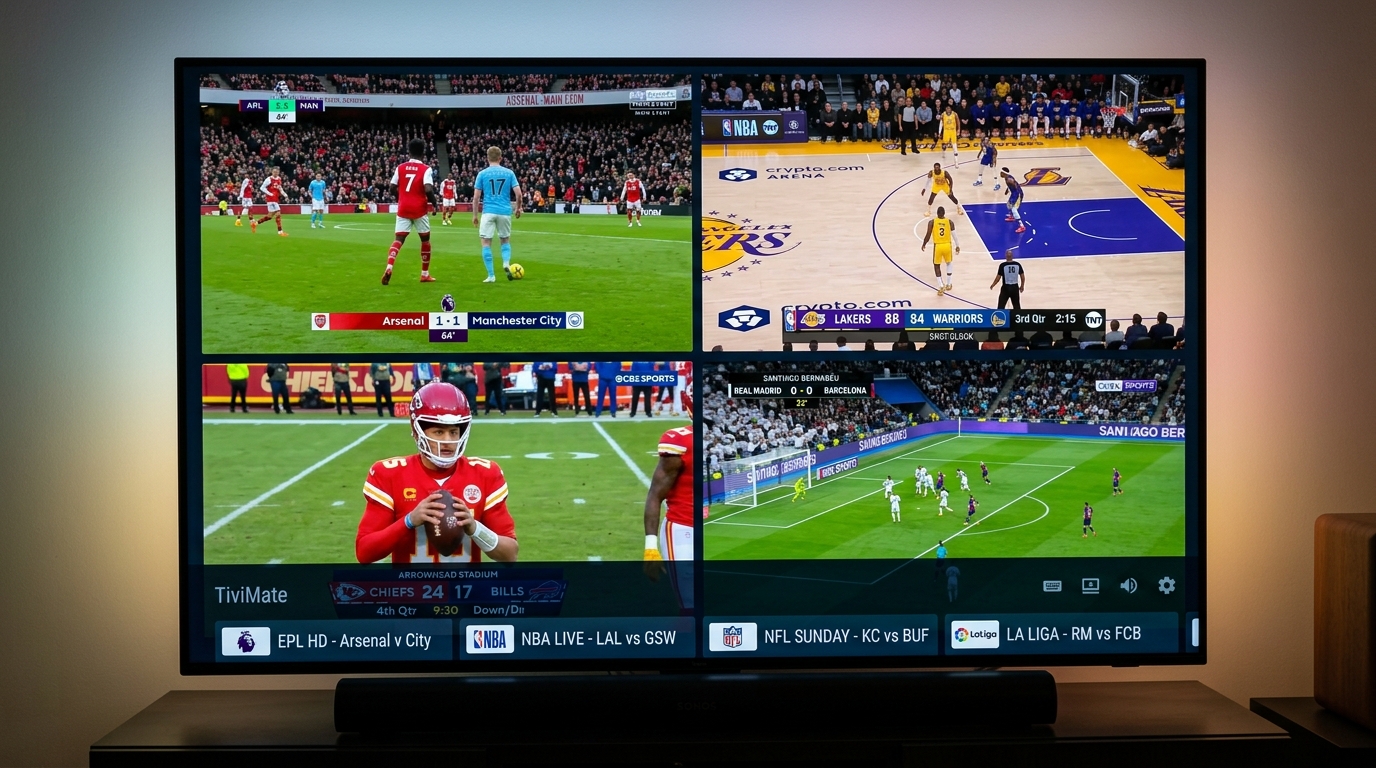
Quick Summary (Multi-View Essentials)
- • What It Does: Multi-View lets you split your TV screen into 2, 3, 4, or up to 9 live video windows running simultaneously.
- • The Golden Rule: Each screen equals one live stream connection. Watching 4 screens requires a provider subscription with at least 4 concurrent lines.
- • Hardware Requirement: Amazon Fire TV Stick 4K, 4K Max, or Nvidia Shield TV Pro. Standard Fire Stick Lite models lack sufficient video decoders for more than 2 screens.
- • Need Multi-Connection Streams? Get a 4K Tivimate Multi-Device Subscription delivering 40,000+ sports feeds with dedicated multi-line bandwidth.
Why TiviMate Multi-View Is the Ultimate Sports Feature
Every sports fan knows the Saturday afternoon dilemma: Arsenal is playing at 3:00 PM, Manchester City is kicking off simultaneously, and an important Formula 1 qualifying session is underway. In the traditional cable world, you were forced to flip frantically between channels or crowd your coffee table with laptops and iPads.
TiviMate Multi-View solves this permanently. Built directly into TiviMate Premium, it splits your television into customizable grid layouts, giving you a commercial sports bar command center in your living room. You can watch up to 4 HD/4K streams on a Firestick 4K Max—or up to 9 streams on an Nvidia Shield TV Pro—with zero lag.
Hardware Capability Matrix: How Many Screens Can Your Device Handle?
Because your streaming box must decode multiple high-definition video feeds at the exact same moment, hardware performance matters. Here is what your device can realistically support:
| Streaming Device | Recommended Screens | Maximum Possible | Performance Rating |
|---|---|---|---|
| Nvidia Shield TV Pro | 4 to 6 Screens | 9 Screens | ⭐⭐⭐⭐⭐ Elite |
| Fire TV Stick 4K Max (2nd Gen) | 2 to 4 Screens | 4 Screens | ⭐⭐⭐⭐ High |
| Fire TV Stick 4K (Standard) | 2 Screens | 3 Screens | ⭐⭐⭐ Moderate |
| Fire TV Stick Lite / Non-4K | 1 Screen (Single) | 2 Screens (720p) | ⭐ Not Recommended |
Need a Subscription with 2 to 5 Simultaneous Lines?
Don't let your streams buffer during Multi-View. 4K Tivimate offers dedicated multi-connection packages with 40,000+ channels and 60 FPS live sports.
Step-by-Step: How to Enable & Launch Multi-View in TiviMate
Step 1: Verify Multi-View Is Enabled in Settings
Before using the feature, make sure the Multi-View toggle is turned on in your player interface:
- 1. In TiviMate, go to Settings (Gear Icon) > Appearance.
- 2. Select Player > Menu.
- 3. Scroll down and ensure Multi-view is toggled ON.
Step 2: Launching Multi-View While Watching a Match
There are two ways to open Multi-View on your Firestick:
- Method A (Player Menu): While watching any live channel, press the Select / OK button on your remote to bring up the infobar. Scroll right to the three-line Menu icon and click Multi-view.
- Method B (One-Click Remote Shortcut - Recommended): Go to Settings > Remote Control > Player, highlight Long Press OK or Guide Button, and assign it to Multi-view. Now, pressing that single button while watching TV launches split screen instantly!
Step 3: Adding Channels to Your Split Screen
- 1. Once in Multi-View mode, click Add screen.
- 2. Your TV guide / channel groups will slide open on the left.
- 3. Select your next sports channel (e.g., Sky Sports Premier League, TNT Sports 1, or Peacock).
- 4. Repeat this process to add up to 4 screens on your Firestick.
Mastering Multi-View Controls: Audio, Layouts & Sizing
How to Switch Audio Between Games
When you have 4 football matches playing at once, TiviMate plays audio from only one channel at a time to prevent deafening noise. To switch commentary to another match:
Simply use the Directional Arrow Keys on your remote to move the highlight frame to the screen you want to hear, and tap Select once. The audio switches instantaneously.
Changing the Grid Layout
TiviMate offers flexible multi-screen arrangements:
- • Equal Grid (2x2): Splits your 4K TV into four identically sized quadrants—perfect for Sunday NFL or Premier League 3:00 PM kickoffs.
- • Hero Layout (1 Big Screen + 3 Small Previews): Gives 70% of the screen to your primary match, while stacking 3 smaller picture-in-picture windows along the right sidebar.
Fixing Multi-View Buffering & Crashes (Optimization Guide)
If your screens freeze, buffer, or crash back to the home screen when you add a second or third window, apply these critical optimizations:
1. Check Your Subscription Connection Limit
If your IPTV line only allows 1 connection, your server will automatically kick or rate-limit the extra feeds. Contact 4K Tivimate on WhatsApp to upgrade to a 2, 3, or 5-connection account.
2. Switch Video Decoder to Hardware Acceleration
In TiviMate, go to Settings > Playback > Video decoder and verify it is set to Hardware. Hardware decoding utilizes your Firestick's dedicated MediaCodec chip rather than overburdening the CPU.
3. Use 1080p Feeds for Smaller Windows
Decoding four separate 4K (2160p) streams will max out even high-end processors. For multi-view, choose the 1080p/60 FPS versions of your channels. On a split screen, 1080p looks indistinguishable from 4K and saves massive bandwidth.
Upgrade to 4K Tivimate Multi-Connection Today
Get 40,000+ live channels, 60 FPS sports, and dedicated multi-screen lines built specifically for TiviMate Multi-View. Start with a free 24h test.