
Quick Summary (Fixing IPTV Buffering Fast)
- • The Core Cause: 85% of buffering during Champions League, Premier League, or UFC events is caused either by ISP bandwidth throttling or budget IPTV providers overloading single servers.
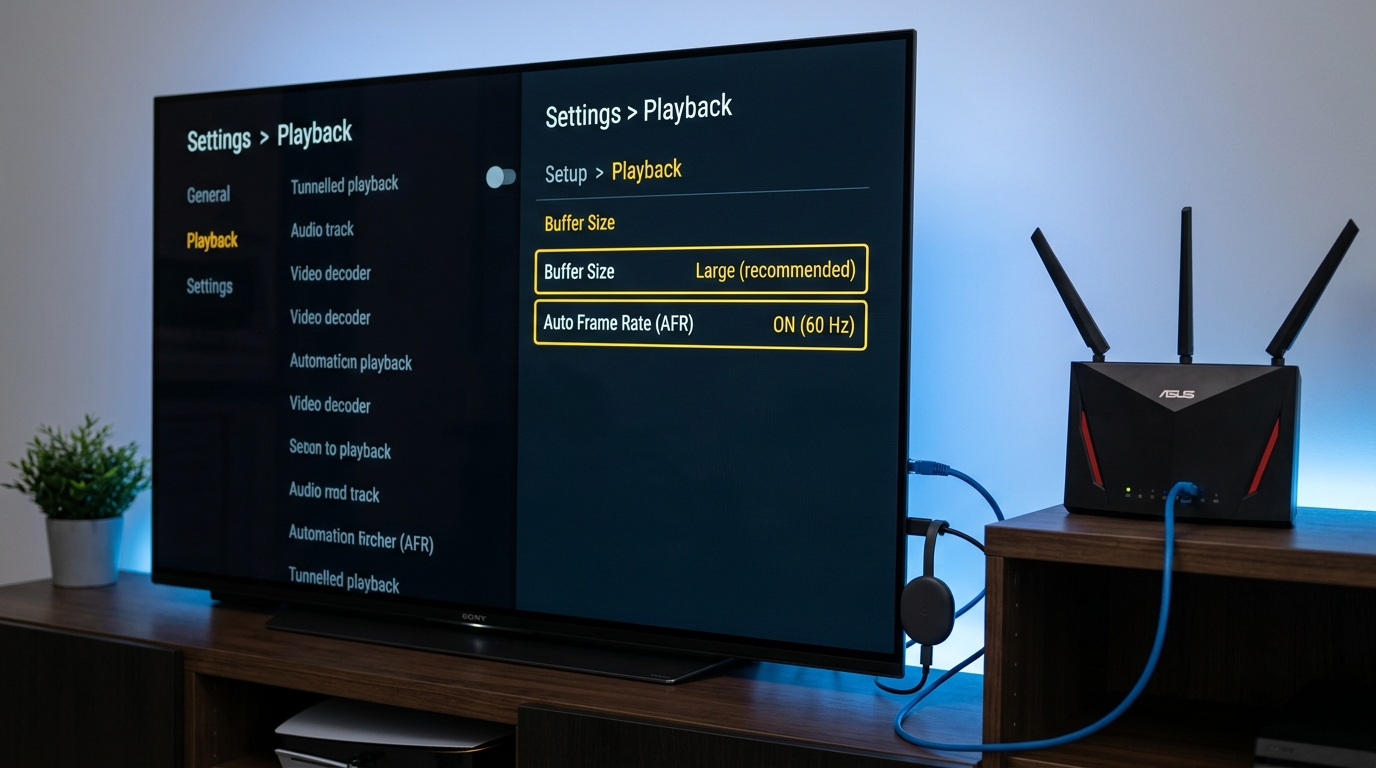
- • Instant App Tweak: In TiviMate, navigate to Settings > Playback and set Buffer Size to 'Large' and enable Auto Frame Rate (AFR).
- • Hardware Connection: Connect your Firestick or Android TV via Ethernet or a 5GHz Wi-Fi band to eliminate local packet loss.
- • The Ultimate Solution: Upgrading to a premium provider with multi-server anti-freeze technology like 4K Tivimate guarantees 50Gbps redundant server links and zero matchday slowdowns.
The Matchday Nightmare: Why Buffering Happens When It Matters Most
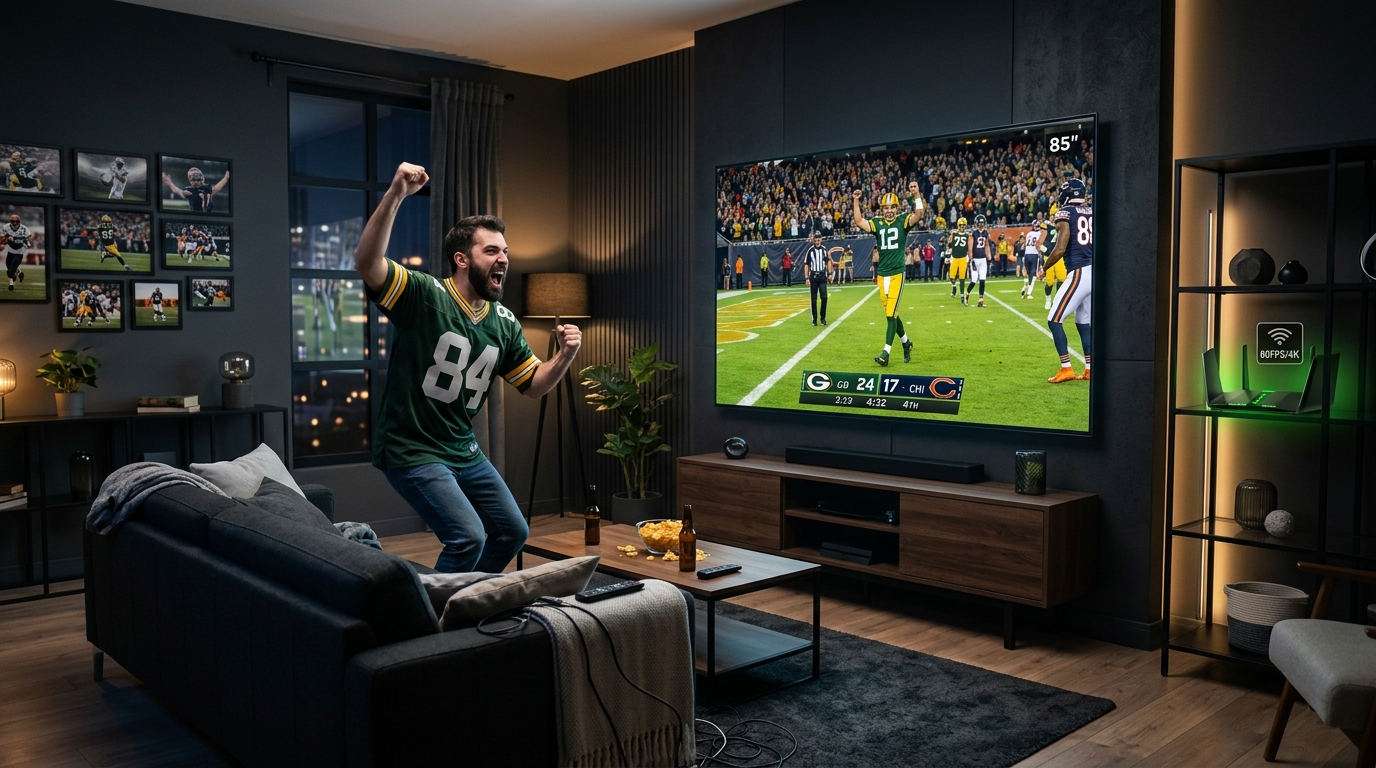
You invite friends over, grab a drink, and settle in for the biggest derby of the season. For the first twenty minutes, everything looks pristine in razor-sharp 4K. But as soon as the stadium erupts and the ball crosses into the penalty box, the video freezes. The audio stutters, a circular loading spinner appears, and by the time the stream resumes, the score has changed.
If this sounds familiar, you are not alone. According to search volume metrics on Google Trends, inquiries for "how to stop IPTV buffering" and "IPTV freezing on Firestick" surge by more than 4,000% within thirty minutes of kickoff on major matchdays. But why does this happen almost exclusively during big events?
ISP Throttling vs. Server Overload: How to Spot the Real Culprit
To fix the issue permanently, you must first identify which of the two primary culprits is choking your stream:
1. Internet Service Provider (ISP) Throttling
During high-profile sporting events, millions of viewers stream data concurrently. Internet service providers in the US, UK, and Europe employ automated traffic-shaping algorithms (Deep Packet Inspection). When their systems detect heavy UDP video data flowing from known IPTV server ports, they artificially throttle your downstream speeds from 300 Mbps down to less than 5 Mbps, causing immediate freezing.
2. Cheap, Oversold IPTV Server Infrastructure
Budget IPTV services often rent low-cost virtual private servers with limited 1Gbps network cards and sell subscriptions to 5,000 users. On a normal Tuesday morning, those servers perform adequately. But on a Saturday afternoon when 3,000 subscribers simultaneously tune into the same 4K sports feed, the server bandwidth saturates, packet loss skyrockets, and everyone buffers.
| Symptom Observed | Likely Root Cause | Immediate Fix |
|---|---|---|
| Freezes only during live soccer or UFC | ISP Throttling or Server Saturation | Enable WireGuard VPN or switch to 4K Tivimate |
| Audio plays smoothly while video freezes | Hardware Video Decoder Bottleneck | Switch decoder from Software to Hardware in player |
| Random 1-second micro-stutters every 30s | Refresh Rate Mismatch (50Hz vs 60Hz) | Enable Auto Frame Rate (AFR) in TiviMate |
| Stream completely halts and won't resume | DNS Resolution Block by ISP | Change router DNS to 1.1.1.1 or 8.8.8.8 |
| App feels sluggish and crashes on channel change | Clogged App Cache & Low Firestick RAM | Clear TiviMate cache & restart device |
7 Proven Fixes to Eliminate IPTV Buffering in 2026
Follow these 7 actionable steps in order to diagnose, optimize, and bulletproof your streaming setup:
Fix 1: Optimize TiviMate's Buffer Size Setting
By default, many media players set buffer cache to 'None' or 'Small' to make channel-switching feel instant. However, this leaves zero room to absorb transient Wi-Fi drops or micro-delays. In TiviMate IPTV Player:
- Open TiviMate and go to Settings > Playback.
- Select Buffer Size and change it from None or Normal to Large.
- For ultra-high bitrate 4K UHD streams, you can even select Very Large. This pre-loads 5 to 10 seconds of video data, meaning small transmission hiccups never reach your screen.
Fix 2: Switch From 2.4GHz Wi-Fi to 5GHz or Ethernet
The 2.4GHz Wi-Fi frequency band is plagued by interference from microwaves, baby monitors, and neighbors' networks. If your Amazon Firestick or Smart TV is on a 2.4GHz network, your actual streaming throughput can drop below 10 Mbps.
Always connect your device to your router's 5GHz Wi-Fi band, or better yet, purchase a USB Ethernet Adapter for your Firestick ($12–$15 on Amazon). A hardwired wired connection eliminates Wi-Fi packet loss completely.
Fix 3: Enable Auto Frame Rate (AFR) Matching
European sports (Sky Sports, TNT Sports, Canal+) broadcast at 50Hz (50fps), while North American sports (ESPN, Fox Sports, NBC) broadcast at 60Hz (60fps). If your streaming stick is locked to a fixed 60Hz output while playing a 50Hz stream, your TV is forced to duplicate frames, creating visible stutter that looks identical to buffering.
In TiviMate, go to Settings > Playback > Auto Frame Rate (AFR) and toggle it ON. Your TV will automatically match its refresh rate to the incoming stream for butter-smooth motion.
Fix 4: Change Your DNS Servers (Bypass ISP Blocks)
Many telecom providers execute soft blocks by interfering with DNS lookups. Switching your device DNS from your default provider to private, ultra-fast DNS servers restores instant connection times:
- Cloudflare DNS: Primary
1.1.1.1• Secondary1.0.0.1 - Google Public DNS: Primary
8.8.8.8• Secondary8.8.4.4
Fix 5: Clear App Cache and Free Up Memory
Amazon Fire TV sticks possess limited internal storage (typically 8GB to 16GB). Over months of use, EPG program guides and channel logos consume hundreds of megabytes of RAM. Navigate to your device Settings > Applications > Manage Installed Applications > TiviMate and click Clear Cache. Never click "Clear Data" as that will remove your playlist credentials.
Fix 6: Use a High-Speed WireGuard VPN
If your streaming runs smoothly at 11:00 AM on a Wednesday but freezes at 3:00 PM on a Saturday, your ISP is actively throttling your line. Connecting to a fast VPN encrypts all your traffic. Because your ISP can only see encrypted packets heading to a secure VPN server, their automated throttling filters cannot identify your IPTV streams, and your speeds remain at full throttle.
Fix 7: Upgrade to a Multi-Server Provider with Anti-Freeze Tech
Even if your home network is flawless, you cannot fix a provider that oversubscribes their servers. The ultimate game-changer is switching to a premium tier-1 IPTV provider designed specifically for heavy sports traffic.
Experience True 4K 60FPS Sports Without Freezing
Switch to 4K Tivimate today. Our multi-server load-balancing architecture routes you to the fastest available node in real-time.
Why 4K Tivimate's Anti-Freeze Technology Stands Out
At 4K Tivimate, we engineered our infrastructure specifically to handle the extreme load of European football, NFL Sundays, and combat sports. Unlike budget resellers, we deploy:
- Over 40,000 Live Global Channels: Local news, entertainment, and premium sports from the US, UK, Canada, France, and Latin America. See our complete Channels List.
- 50Gbps Redundant Cloud Pipelines: Redundant server data centers distributed across North America and Europe prevent single-point-of-failure bottlenecks.
- Native 4K UHD & 60FPS Bitrates: High-definition sports feeds with true 60 frames-per-second fluidity, ensuring crystal-clear ball tracking.
- Universal Hardware Compatibility: Comprehensive installation tutorials for Firestick, Android TV, and Smart TVs.
Step-by-Step Checklist for Big Matchdays
- 1 Hour Before Kickoff: Restart your Wi-Fi router and your Firestick or Android TV box to clear stale memory.
- 30 Minutes Before Kickoff: Run an on-device speed test to verify you have at least 30 Mbps downstream.
- 15 Minutes Before Kickoff: Tune into your target channel early. In TiviMate, confirm that your Buffer Size is set to 'Large'.
- If Stutter Appears: Turn on your WireGuard VPN to immediately defeat matchday ISP throttling.
Frequently Asked Questions (FAQ)
Why does my IPTV only buffer during major football matches and PPV fights? +
Buffering during high-profile matches occurs for two main reasons: (1) cheap IPTV providers host thousands of streams on overloaded single servers that lack load-balancing capacity, and (2) major Internet Service Providers (ISPs) actively deploy automated bandwidth throttling when they detect massive UDP streaming spikes to specific IPTV IP ranges on game days.
What is the best buffer size setting in TiviMate to prevent stuttering? +
For most high-speed broadband connections (50+ Mbps), setting TiviMate's buffer size to 'Large' or 'Very Large' provides a 5 to 10-second data cushion that absorbs momentary network jitter and prevents playback interruptions. If your connection is below 25 Mbps, select 'Medium' to prevent channel-switching delays.
Does using a VPN stop IPTV buffering or slow it down? +
If your buffering is caused by ISP throttling (common in the UK, US, and Europe during Champions League or Premier League matches), a premium VPN using the WireGuard protocol will completely bypass ISP throttling and stop buffering immediately. However, free or overloaded VPNs will degrade your speed and worsen buffering.
What internet speed do I need for buffer-free 4K IPTV streaming? +
A steady connection of at least 25 to 30 Mbps per device is recommended for smooth 4K Ultra HD 60fps streaming. For standard HD (1080p) streams, 10 to 15 Mbps is sufficient. Always verify your speed with an on-device speed test rather than a phone or laptop test.
How does 4K Tivimate prevent buffering compared to other providers? +
4K Tivimate utilizes a globally distributed Content Delivery Network (CDN) with 50Gbps redundant server links and proprietary anti-freezing load-balancing algorithms. If a primary feed experiences traffic congestion, the system automatically redirects your connection to an alternate backup stream in milliseconds without interrupting your viewing.
Never Miss a Game-Winning Goal Again
Join over 2,400 satisfied subscribers streaming buffer-free 4K sports with 4K Tivimate.
Order Now with Instant WhatsApp Setup