
Quick Summary (Key Fixes at a Glance)
- • Step 1 (Clear Cache): Go to Settings > EPG, click Clear EPG, and then click Update EPG. Over 60% of guide errors stem from stale or corrupted local XML cache.
- • Step 2 (Sync Time): Verify your Amazon Firestick or Android TV device time is set to Automatic (Network-Provided). A 5-minute clock drift causes the entire timeline to disappear.
- • Step 3 (Time Offset): If shows appear shifted by hours, adjust EPG > EPG Sources > Time Offset (+/- hours) to align with your local time zone.
- • Permanent Solution: Switch to 4K Tivimate with built-in Xtream Codes API—delivering auto-updating, server-synced EPG for 40,000+ channels with zero manual XML setup.
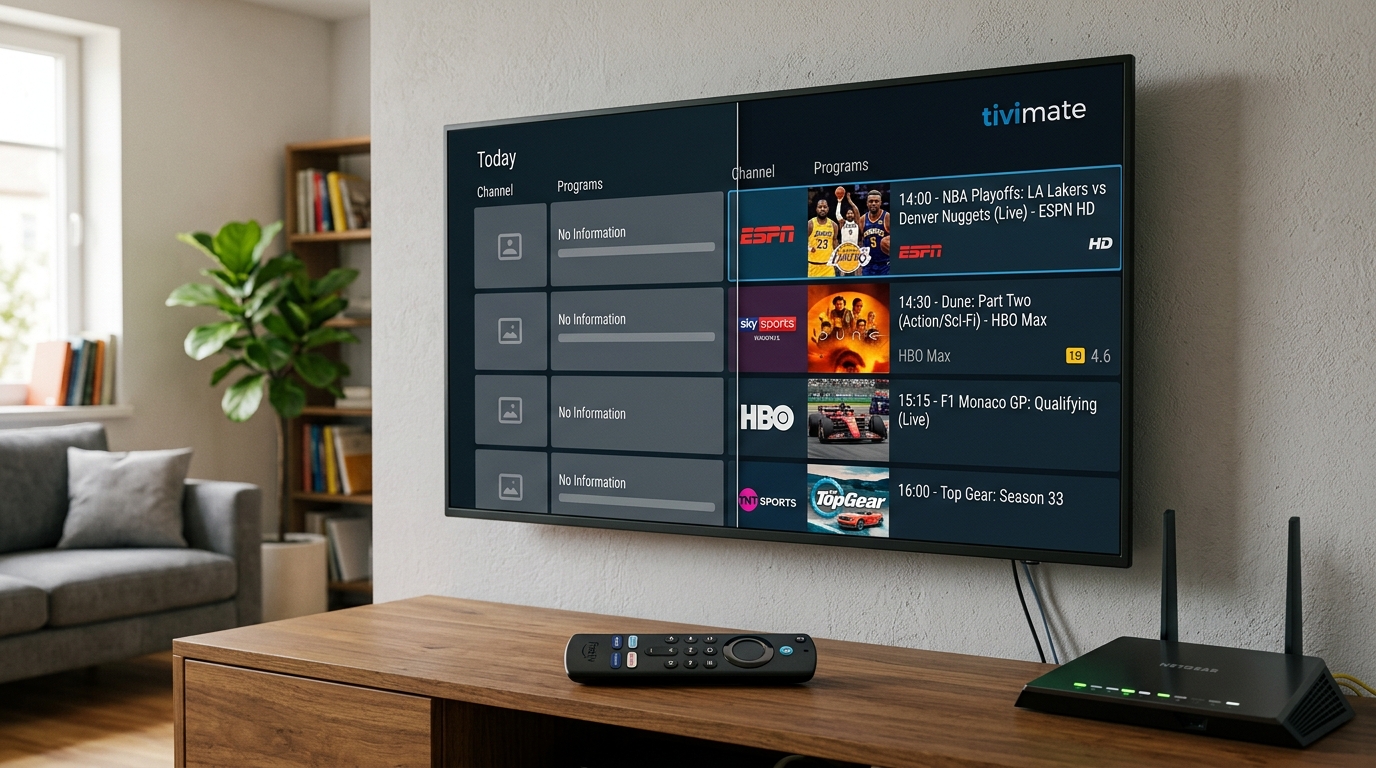
Why Does TiviMate Show "No Information" on Channels?
TiviMate is celebrated as the undisputed gold standard for streaming TV interfaces. Its clean, cable-like Electronic Program Guide (EPG) makes browsing live sports, news, and cinema effortless. However, seeing continuous gray rows labeled "No Information" is one of the most frustrating experiences for cord-cutters.
Unlike Netflix or Disney+, which pull static cloud catalogs, TiviMate fetches a live XMLTV file from your provider's server. If that transmission encounters network bottlenecks, clock mismatches, or file corruption, the TV guide fails to render. Here are the five root causes:
- 1. Corrupted EPG Database: TiviMate stores days of scheduling data in a local SQLite database. If a download is interrupted midway (due to Wi-Fi drops or low device storage), the database becomes corrupted.
- 2. System Clock Desynchronization: TiviMate displays program listings relative to your streaming box's internal clock. If your Firestick rebooted without internet and defaulted to a different date or time, every listing falls outside the visible viewing window.
- 3. ISP Blocking or Throttling XMLTV Endpoints: Many major ISPs (Comcast, Spectrum, BT, Virgin Media) inspect HTTP traffic and throttle external XMLTV feeds during peak hours.
- 4. Dead or Unmaintained Provider EPG URLs: Budget IPTV services often use free public guide URLs that get banned, rate-limited, or shut down without warning.
- 5. Playlist Mismatches (tvg-id Errors): In plain M3U files, if the channel tag (e.g.,
tvg-id="SkySportsMainEvent.uk") doesn't exactly match the XMLTV database ID, TiviMate cannot pair the schedule to the channel.
Tired of Broken EPG Guides & Missing Schedules?
Experience high-speed Xtream Codes servers with 100% automated EPG sync, 7-day catch-up, and 4K sports with zero buffering. Instant WhatsApp setup.
5 Proven Fixes for TiviMate EPG Not Loading
Fix 1: Clear EPG Cache & Force a Fresh Download
This is the #1 fix that resolves over 60% of guide errors in under 30 seconds:
- 1. Open TiviMate and press the Back or Left button on your remote to reveal the left-hand sidebar menu.
- 2. Scroll down and click the gear icon: Settings > EPG.
- 3. Scroll down and select Clear EPG. Confirm by selecting Yes. This purges stale, broken guide fragments.
- 4. Now click Update EPG. TiviMate will display a loading progress bar (e.g., "Updating EPG... Processed 145,000 programs").
- 5. Return to the TV guide screen—your channel schedule will now populate instantly.
Fix 2: Verify Firestick & Android TV System Clock
If your device clock is off by even 5 minutes, TiviMate cannot match current broadcast times to the program schedule:
- • On Amazon Firestick: Go to Settings > Preferences > Time Zone > Time Zone. Ensure your geographic region is exact.
- • On Android TV / Google TV: Go to Settings > System > Date & Time. Toggle Automatic date & time to Use network-provided time.
- • After updating your device clock, restart your streaming device and relaunch TiviMate.
Fix 3: Fix Wrong Program Times with EPG Time Offset
Do your TV listings show evening soccer matches at 2:00 PM, or are prime-time movies listed hours in advance? Your guide data is working, but your provider's server time zone differs from your local time:
- 1. In TiviMate, navigate to Settings > EPG > EPG Sources.
- 2. Click on your active EPG source.
- 3. Select Time Offset.
- 4. Adjust the slider. For example, if shows appear 5 hours behind reality, set the offset to +5.00 h. If they are ahead, choose -5.00 h.
- 5. Click Apply and return to your guide. Your timeline will now align with live broadcasts.
Fix 4: Add Backup Secondary EPG Sources (XMLTV URLs)
If your provider does not offer guide data for niche international channels or local US/UK networks, TiviMate Premium allows you to add secondary XMLTV guide repositories:
| EPG Source Type | Strengths | Best Used For |
|---|---|---|
| Xtream Codes API (Native) | Automatic, zero configuration, fast sync | Primary channel lineup on 4K Tivimate |
| EPGshare01 (Public XMLTV) | Comprehensive regional coverage (US/UK/FR) | Secondary guide for missing sports or local channels |
| IPTV-Org Repositories | Open-source global XMLTV feeds | International and foreign language networks |
To add a secondary source: go to Settings > EPG > EPG Sources > Add Source, enter the XMLTV link, and tap Done. Next, go to Playlists > [Your Playlist] > EPG Sources and check both your primary and secondary sources.
Fix 5: Manually Assign EPG to Stubborn Channels
If 95% of your channels have guide data but a few specific channels (such as regional sports networks or pay-per-view channels) still say "No Information", you can map them manually:
- 1. In the TV guide, highlight the channel with missing information.
- 2. Long-press the OK/Center button on your remote to open the quick channel menu on the right.
- 3. Scroll down and click Assign EPG.
- 4. Type the name of the channel in the search bar (e.g., "TNT Sports 1" or "CBS Sports").
- 5. Select the matching listing from your EPG sources. The channel will immediately display full broadcast details and poster artwork!
Why Xtream Codes Beats Plain M3U Playlists for EPG Stability
If you are still uploading raw M3U text files into TiviMate, you are making EPG maintenance ten times harder. Plain M3U links load massive static text files that frequently fail when network timeouts occur.
By connecting via Xtream Codes API (Server URL, Username, and Password):
- • TiviMate queries the database directly, downloading only required data in compressed packets.
- • Channel logos, HD/4K tags, categories, and catch-up indicators populate automatically without broken image links.
- • When your provider adds new channels or updates sports feeds, your TV guide updates in the background automatically.
Experience Flawless 4K TV with 100% Synced EPG
Get 40,000+ live channels, 60 FPS sports, and instant catch-up configured directly on your TiviMate player. Say goodbye to "No Information" forever.