
⚡ Quick Summary: The Ideal TiviMate Setup in 30 Seconds
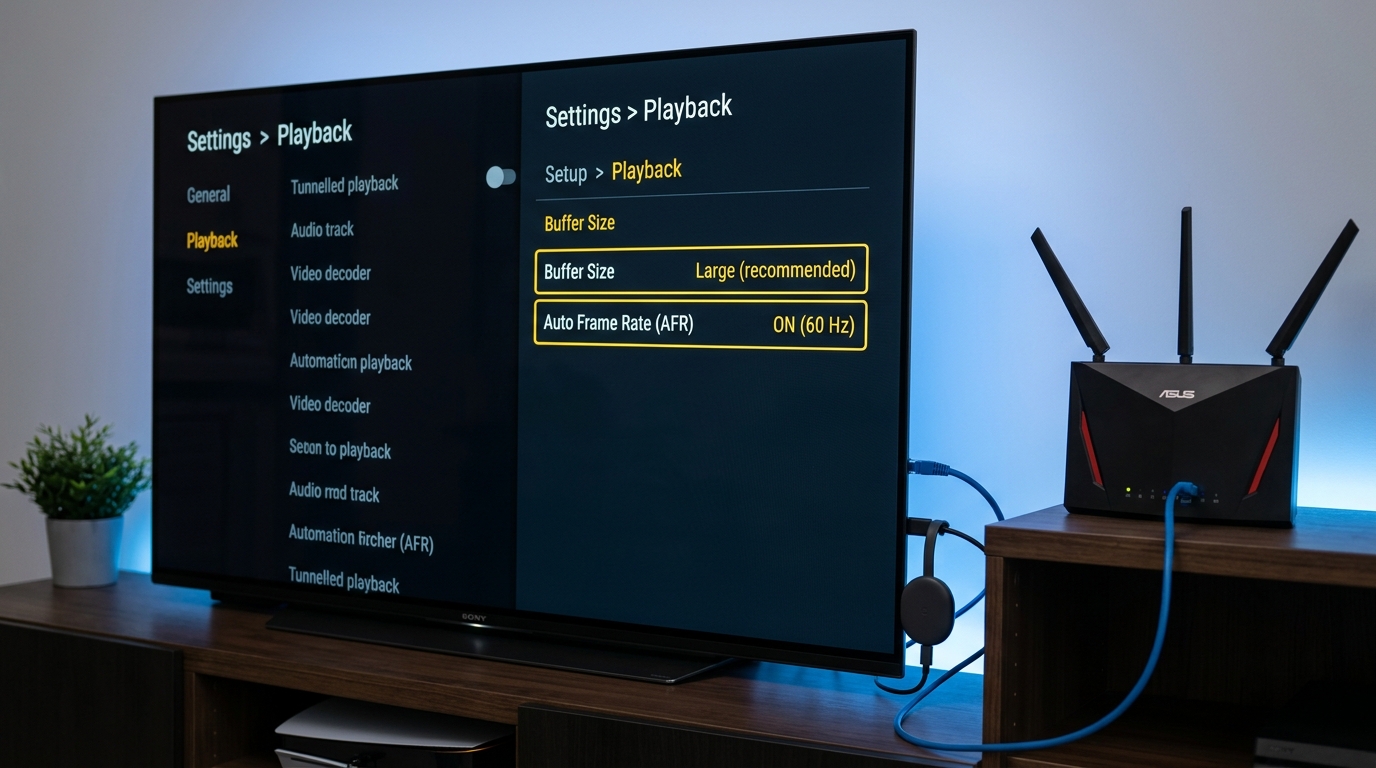
- ✅ Buffer Size: Set to Medium for Wi-Fi connections; switch to Large if you experience micro-freezes. Use Small only on hardwired fiber Ethernet.
- ✅ Video Decoder: Always keep on Hardware to leverage GPU acceleration for 4K 60 FPS HEVC and AV1 streams.
- ✅ Output Format: Switch from MPEG-TS to HLS under Xtream Codes Parameters if your ISP throttles sustained UDP/TS streams.
- ✅ Auto Frame Rate (AFR): Turn ON to prevent judder and micro-stutter when streaming 50 FPS European football on 60Hz displays.
- ✅ Provider Quality: Even flawless settings cannot overcome congested servers. Pair TiviMate with an anti-freeze provider like 4K Tivimate with 99.9% uptime.
There is nothing more frustrating than sitting down to watch a crucial Champions League match, NFL Sunday kickoff, or UFC main card only to be greeted by a spinning loading circle or stuttering audio. While many cord-cutters immediately blame their internet connection, the culprit is often misconfigured playback parameters inside the media player.
TiviMate IPTV Player is universally regarded by Reddit and tech enthusiasts as the most powerful player on Android TV and Amazon Firestick. However, its default settings are conservative. By dialing in the exact buffer size, hardware decoder options, and adaptive streaming protocols, you can transform a frustrating streaming experience into rock-solid, cable-grade television.
1. TiviMate Buffer Size: None vs Small vs Medium vs Large
The Buffer Size setting controls how many seconds of upcoming video data TiviMate pre-loads into your device's RAM before rendering it on screen. If your Wi-Fi speeds momentarily dip by 10% for half a second, an adequate buffer absorbs the shock seamlessly.
To adjust your buffer size in TiviMate, navigate to:
Settings > Playback > Buffer Size
Medium (Recommended for 90% of Users)
Buffers approximately 3 to 5 seconds of stream data. Preloads enough headroom to absorb standard Wi-Fi packet drops while maintaining fast channel-switching speeds (under 1.5 seconds).
Large / Very Large (For Unstable Connections)
Caches 8 to 12 seconds of content. Essential if you are using mobile hotspot data, older 2.4 GHz Wi-Fi, or streaming high-bitrate 4K HDR channels from overseas servers. Channel zapping takes slightly longer (~3s).
Small (For Hardwired Gigabit Fiber)
Preloads 1 to 2 seconds. Delivers ultra-responsive instantaneous channel surfing. Only recommended if your streaming box is connected directly via an Ethernet cable with sub-15ms ping times.
None (Not Recommended)
Zero buffering. Any microscopic network hiccup will instantly freeze the picture or throw an error. Avoid setting buffer size to None unless conducting specific network latency diagnostics.
2. Stream Output Format: HLS vs MPEG-TS
One of TiviMate's most powerful yet underutilized settings is the Xtream Codes Output Format. When your playlist is added via Xtream Codes API (Server URL, Username, and Password), you can choose how the video stream is delivered to your player.
Go to:
Settings > Playlists > [Select Your Playlist] > Xtream Codes Parameters > Output Format
| Format | How It Works | Best Use Case |
|---|---|---|
| MPEG-TS (.ts) | Continuous raw Transport Stream. Lower latency, but sensitive to packet drops. | Default mode. Ideal for ultra-fast local networks and live sports. |
| HLS (.m3u8) | Segmented chunks over standard HTTP/HTTPS. Immune to sequential packet drops. | Best fix for buffering! Bypasses ISP traffic shaping and proxy bottlenecks. |
Pro Tip: If a specific sports channel freezes every 30 seconds on MPEG-TS, toggling your playlist to HLS forces the stream to arrive via standard web HTTPS chunks. Internet Service Providers (like Comcast, Verizon, BT, or Orange) cannot distinguish HLS video from regular web traffic, which often bypasses automated ISP throttling.
Tired of Buffer Wheels During Big Matches?
Upgrade to 4K Tivimate's enterprise 10 Gbps CDN network. Over 40,000+ live 4K channels and 60 FPS sports with zero freeze guarantee. Test it free for 24 hours on WhatsApp.
3. Video Decoder & Tunneled Playback
Under Settings > Playback, you will find options for Video Decoder and Audio Decoder.
- Video Decoder = Hardware (Mandatory): Modern streaming hardware (Firestick 4K Max, Onn 4K Pro, Chromecast with Google TV, Nvidia Shield) features specialized physical silicon designed to unpack H.265 (HEVC), H.264, and AV1 video. Software decoding forces your weak streaming stick CPU to calculate millions of pixels every second, causing overheating, dropped frames, and eventual crashes.
- Audio Decoder = Hardware: Keep on Hardware. If you connect your streaming box to an AV Receiver or Soundbar, make sure to enable Audio Passthrough so Dolby Digital Plus (E-AC-3) and Atmos audio tracks are processed cleanly by your sound system.
- Tunneled Playback (Turn ON if available): Supported on modern Android 11+ and Amlogic chipsets. Tunneled playback provides a direct hardware pipeline between the video decoder and the display processor, reducing audio-to-video latency and cutting system memory overhead.
4. Auto Frame Rate (AFR): Eliminating Live Sports Judder
Have you ever noticed that when watching a football match or basketball game on TiviMate, the camera motion looks subtly choppy or jerky even though the stream isn't buffering? That issue is known as judder or frame rate mismatch.
Most television sets in North America default to 60Hz or 120Hz refresh rates. However, sports broadcasts from the UK, France, and Europe (Sky Sports, TNT Sports, Canal+, beIN Sports) are produced natively at 50 frames per second (50 FPS). When a 50 FPS stream is forced onto a 60Hz display without correction, the player must duplicate every 5th frame, creating visible stuttering during fast camera pans.
How to Enable Auto Frame Rate in TiviMate:
- Go to Settings > Playback.
- Scroll down and toggle Auto Frame Rate (AFR) to ON.
- Set Display Mode Switching Delay to 200ms or 500ms.
- When you switch to a 50 FPS European channel, your TV screen will briefly flash black for half a second as it shifts into native 50Hz mode, followed by butter-smooth motion.
5. TiviMate Maintenance: Clear Cache & EPG Frequency
Over weeks of use, TiviMate accumulates cached channel logos, poster art, and expired Electronic Program Guide (EPG) schedules. On low-storage devices like an 8 GB Firestick, this bloat consumes available memory and slows down channel loading.
🧹 Clear App Cache Monthly
In your device settings (Fire TV Settings > Applications > Manage Installed Applications > TiviMate), click Clear Cache. Never click "Clear Data" as that will erase your playlists.
📅 Optimize EPG Update Schedule
Under TiviMate Settings > EPG > Update Interval, set updates to Every 24 hours. Updating every time the app launches wastes bandwidth and can cause brief loading pauses.
Master Checklist: TiviMate Best Settings in 2026
| Setting Option | Default Setting | Optimized Setting |
|---|---|---|
| Buffer Size | Small / None | Medium (Wi-Fi) / Large (High-Bitrate 4K) |
| Video Decoder | Hardware | Hardware (Keep Enabled) |
| Xtream Output Format | MPEG-TS | HLS (For ISP Throttling Bypass) |
| Auto Frame Rate (AFR) | Disabled (OFF) | Enabled (ON) + 200ms Switch Delay |
| Tunneled Playback | Auto / Disabled | Enabled (If Supported by Device) |
| EPG Update Interval | On App Start | Once every 24 Hours |
Frequently Asked Questions About TiviMate Settings
What is the best buffer size in TiviMate to stop buffering?
For most users on home Wi-Fi, setting Buffer Size to 'Medium' provides the ideal balance between stream stability and fast channel zapping. If you have an unstable Wi-Fi connection or notice occasional 2-second freezes during live sports, switch to 'Large'. If you are connected via hardwired Gigabit Ethernet on fiber, 'Small' delivers near-instant channel changes.
Should I select HLS or MPEG-TS output format in TiviMate?
If you experience constant buffering or error 404/403 drops, switch your output format from MPEG-TS to HLS in Settings > Playlists > [Your Playlist] > Xtream Codes Parameters. HLS (HTTP Live Streaming) delivers media in discrete segmented chunks, allowing your player to better recover from network jitter and bypass aggressive ISP video throttling.
Should I use Hardware or Software video decoder in TiviMate?
Always set Video Decoder to 'Hardware'. Hardware decoding offloads decompression directly to your streaming device's GPU (Amlogic, MediaTek, or Tegra), ensuring buttery-smooth 4K 60 FPS playback with minimal CPU temperature and zero frame drops. Only switch to 'Software' as a last resort if a specific obscure channel shows a black screen with audio.
What does Auto Frame Rate (AFR) do in TiviMate and should I turn it on?
Auto Frame Rate (AFR) automatically synchronizes your television display refresh rate (e.g., 50Hz, 59.94Hz, 60Hz) to match the broadcast frame rate of the live channel. Enabling AFR eliminates micro-stutter and judder during fast-moving camera pans in football, soccer, and Formula 1 races.
Does upgrading to TiviMate Premium fix stream buffering?
TiviMate Premium unlocks vital playback controls—such as custom buffer size adjustments, Auto Frame Rate matching, multi-view up to 9 screens, and manual audio offset. While Premium optimizes client-side playback, you also need an anti-freeze IPTV subscription with high-bandwidth CDN servers like 4K Tivimate to eliminate server-side lag.
Ready to Experience True 4K 60 FPS Without Lag?
Pair your optimized TiviMate player with 4K Tivimate's premium servers. No contracts, instant 2-minute activation, and full WhatsApp support.
Start Free 24h IPTV Trial